01
Choose Your Audio Clip
Upload your MP3 or WAV file. Use the start and end controls to choose the part you want your photo to sing, then confirm your selection.

You don’t have enough credits to complete this request.As a subscription member, you can buy one-time lifetime credits that never expire—no subscription and no auto-renewal. Use them anytime to create songs, instrumentals, or music content.
Upload a photo and an audio file to make your photo sing. Csong AI turns your portrait and song into a lip-synced singing video.
Click to upload or drag audio here
MP3, WAV (max 10 minutes)Upload a song, vocal track, voiceover, or podcast clip. Max video: 60s.
Click to upload a vertical photo
JPG, PNG (Max 10 MB)Use a portrait image with clear face.
Billed by saved audio length in 5-second increments. 720p costs 2× 480p.


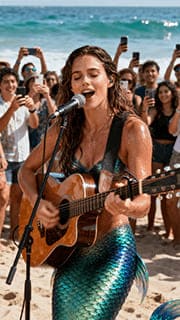

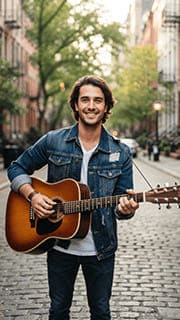

One photo. Your song. A new performance.
An AI singing photo turns a still portrait into a video that appears to sing along to your audio. Csong.ai brings your photo and song together with lip-synced animation.
Start with an audio file you already have, add a clear photo, and describe the performance. Your audio supplies the voice and melody; your prompt guides the expression, movement, and setting.
From still photo to singing video
Choose your sound, add your portrait, and give the performance your own direction.
Upload your MP3 or WAV file. Use the start and end controls to choose the part you want your photo to sing, then confirm your selection.
Upload a clear vertical portrait. Describe the expression and movements you have in mind, then choose 480p or 720p.
Review the required credits, select Create, and preview your AI singing photo when it is ready. Download the video to share your performance.
Bring the audio you already love
Your singing photo does not have to start with a preset song. Upload your own music or vocal recording and choose the part that matters most.
Use your own song. Bring a track you recorded or a song you created with Csong AI.
Pick the right moment. Focus on a verse, chorus, or short vocal phrase with the audio editor.
Direct the performance. Describe a warm smile, gentle head movements, or a calm, steady portrait.
A little inspiration for your next creation
Put a face to your music, turn a message into a performance, or give your next song a visual introduction.
Let your selfie perform a favorite part of your own song. A single portrait is all you need to put yourself in the spotlight.
Make a singing photoPair a portrait with a personalized birthday song for a musical greeting that feels more personal than a still photo.
Make a singing photoBring a verse or chorus into view. Turn an artist portrait and a song clip into a short visual introduction to your music.
Make a singing photoCreate vertical singing clips for your next post, a creative update, or a music message to share with friends.
Make a singing photoLet the audio sing. Let the prompt direct.
A good singing photo prompt describes what the viewer sees. Start with one of these ideas and adjust it to match your portrait.
A singer facing the camera, performing a pop song with a warm smile, expressive eyes, and gentle head movements.
A singer performing an acoustic song with a relaxed expression and subtle, natural movement. Keep the camera steady.
A singer performing a soft ballad with a calm expression, gentle head movements, and a clear view of the face.
Your prompt describes the visuals. You do not need to paste your song lyrics here.
Before you select Create
Start with a clear face and an easy-to-hear vocal. A simple photo and a focused prompt give your singing video a clearer direction.
Choose your photoChoose one person with the entire face visible, balanced light, and no objects covering the mouth.
Use a section that contains singing rather than a long instrumental introduction.
Preview the start and end before confirming. Avoid cutting off a word halfway through.
Describe a few natural movements that fit your photo instead of several unrelated scenes.
From your first idea to a singing photo
Create an original song from text or your own lyrics with Csong AI. Compare two song versions, download your favorite as MP3 or WAV, and upload it here to make your photo sing.
Create Songs with AIYour questions, answered
Everything you need to know about making a photo sing with Csong.ai, from your first upload to your finished video.
An AI singing photo is a video that makes a person in a still image appear to sing along to an audio track. Csong.ai combines your photo, uploaded audio, and performance prompt to create a short singing video with lip-synced animation.
Upload an MP3 or WAV file, choose your audio clip, and confirm the selection. Then upload a vertical photo, describe the performance in the prompt, and choose 480p or 720p. Review the required credits and select Create to make your AI singing photo video.
Yes. You can upload your own song, a vocal track, or another MP3 or WAV audio file. You do not need to choose a preset song or create your music on Csong.ai first. For a singing photo, choose a section of audio that contains clear vocals.
Yes. Create a song from a text idea or your own lyrics on the Csong.ai homepage, download it as MP3 or WAV, and upload the file to AI Singing Photo. Select the verse, chorus, or other short section you want your photo to perform.
Use a vertical JPG or PNG with one clear face looking toward the camera. Keep the full face visible, use balanced lighting, and avoid sunglasses, masks, or objects covering the mouth. The photo upload supports files up to 10 MB.
AI Singing Photo accepts MP3 and WAV audio, plus JPG and PNG photos. Audio uploads can be up to 10 minutes long; choose a shorter section for the video in the audio editor. Photos must be vertical and no larger than 10 MB.
Use the audio editor to select a short clip within the video length limit shown beside the upload controls. The confirmed start and end times determine your video’s audio. A longer uploaded song does not mean the entire song will be used.
Upload your audio and use the Start time and End time controls to select the chorus. Play the selection to hear the boundaries, then select Confirm. Changing either boundary after saving requires you to confirm the new selection before creating the video.
Describe the expression, movement, and setting you want, such as: “A singer facing the camera, singing with a warm smile and gentle head movements.” Your audio supplies the vocals; the prompt describes the performance. Keep the description consistent with your photo.
No. Upload an audio file that already contains the vocals you want to use. The prompt is for visual direction, not for writing a new song. To turn written lyrics into a song first, use Create Songs with AI on the Csong.ai homepage.
Yes. The Resolution section offers 480p Standard and 720p High Quality. Choose your preferred option before generating. Review the credit amount displayed for your selected audio clip and resolution before you select Create.
Video generation uses credits based on the saved audio length, billed in 5-second units. Confirm your clip and choose a resolution to see the required credits before generating. Refer to the amount shown in the tool for your specific selection.
The music video workflow includes automatic on-screen captions from the uploaded audio. These help viewers follow the words in a singing photo video. Check the finished captions before sharing, especially when vocals overlap or words are hard to hear.
Yes. Upload a voiceover, narration, or spoken audio clip instead of a song. The same photo-and-audio workflow can make a portrait appear to speak. For a singing photo, use an audio track with singing rather than speech.
No. AI Singing Photo turns a photo and an existing audio track into a singing video. Picture to Music uses an image as inspiration for creating music. Choose AI Singing Photo when you already have a song and want a portrait to perform it.
You can use the web page on a phone or a desktop browser. On mobile, the upload controls and preview stack vertically, and the reference photos can be swiped horizontally. Choose your files, confirm the audio clip, and follow the same creation steps.
After generation is complete, preview and download your video. You can then upload the vertical clip to places such as TikTok, YouTube Shorts, and Instagram Reels, or share it as a personal music message.
Check that your audio has finished loading and that you have confirmed the selected clip. You also need a vertical photo and a non-empty performance prompt. If you change the clip after confirming it, confirm the updated selection again before creating.
Bring your portrait and your song together. Create a singing photo with a performance that feels like your own.